How do I exclude my internal traffic from Google Analytics reports?

by

Amanda just wrote about how to find out what your IP address; but how do you go about excluding your traffic from your Google Analytics reports? With the old version of GA I knew how to input my IP address so it would get filtered in the reports;  but for some reason I couldn’t quite figure out how to do this in the new version. Thanks to a colleague,  she pointed it out to me and I thought I’d “pay it forward” and show you!

Click on any of the images below for a closer view.

  1. After you’re logged into your Google Analytics account and have selected your account, in the upper right hand corner, you’ll see an “Admin” tab (See the image to the right). This will take you to the settings for that GA account; this is also where you can set up assets like Custom Alerts, Goals, and Users.
    Filtering out IP traffic from GA reports
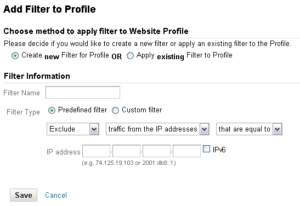
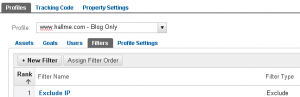
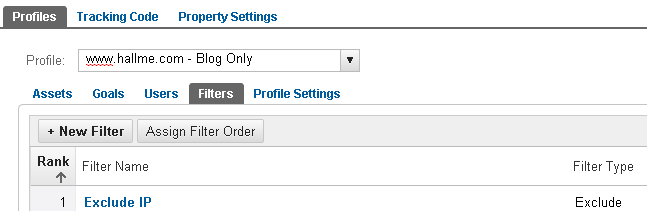
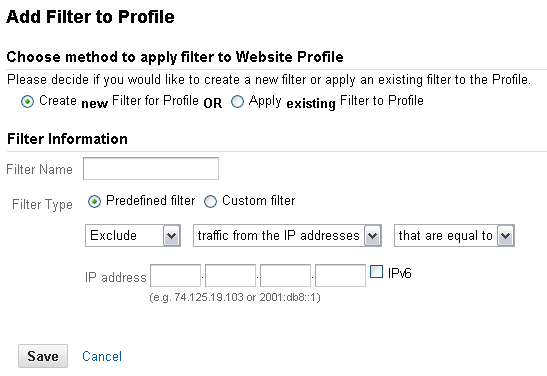
  2. You want to make sure that you’re looking at the “Profiles” which is the top tab in this section, then select Filters. This is where you can add, remove, and edit filters on your Google Analytics account. If you’re setting up filters for the first time, choose “+ New Filter.” Indicate whether you are creating a new filter for a profile or applying an existing filter to a profile.Selecting IP Address for Google Analytics filtering
  3. The next steps are very easy – give your filter a name (you might want to filter home traffic and office traffic; this is a good place to note which is which), select filter type (it’s probably predefined), and then choose “Exclude,” “traffic from the IP addresses,” and “that are equal to” from the drop downs. This is where you put in your IP address! Click “Save” and voilà you have just filtered out your IP traffic from Google Analytics reports!
Pro tip!

Once you’ve filtered your traffic you should make an Annotation in Google Analytics. That way, if someone else is looking at your site metrics and they notice that traffic has dropped some in the last month, they can see that there is an annotation that reads, “Filtered out office IP traffic from reports” and be able to attribute that decline more easily. I try to get in the habit of making annotations whenever something significant may have changed on the site or that may affect the reports.
  • Raul

    Good to know!, keep in mind that it’s best to keep two profiles of the same website being tracked and to have one of them be kept unfiltered. If for some reason you decide not to use the custom filter you previously created, you can’t undo the filter and see all the missing data.

    In this case what’s being filtered is your own traffic, which most site owners want to filter out and the data is not needed, but for other types of filters, its not made clear that by using the filter google does not log the filtered information.

    Raul

    by the way, do you know how I can filter out my ip address from previous reports of my data? I made the change you mentioned here and from now on the data will be filtered, but I want to do the same as I analize my previous data.

    Thanks!

  • http://twitter.com/jenika29 Jenika

    Thanks for your comment and recommendation Raul! You are absolutely right; is good to keep a “master” profile just in case anything gets changed.

    As far as filtering IP addresses from historical data; to my knowledge you can’t do this, which is why it is so important to set up the filters initially.

    If you do find out that there is a way to do this, please share here!

    Thanks again!

  • Kris Benetto

    This sounds easy enough, but I do not see the gear icon on my GA account! I have gone back over several days and have used different web browsers? Anyone else experiencing this? Do you know if Google has changed their setup for GA in the couple of months since you wrote this? Thanks for your help.

  • http://twitter.com/jenika29 Jenika

    Hi Kris, you’re right they did update the design a bit and the gear is no longer there. You should be able to access the filters by clicking on “Admin” in the upper right hand corner. Then you’ll see a couple of tabs on the page, you want to click on the one that says “Filters.” To add a new filter click on “+ New Filter” and then just follow the rest of the directions above (should be the same). If are still having trouble accessing it please let me know and I’ll be happy to help. (And I’ll update this post in case anyone else runs into that problem) Thank you!

  • Kris Benetto

     Hi Jenika never mind I figured it out! Apparently Google did change some things on March 1. The “Admin” button now takes the user where the gear icon used to! I could have sworn I checked that before writing initial question, but no matter now. Thanks again for the info

  • http://twitter.com/MContreras28 Melissa Contreras

    Hi Jennika,
    Thanks for the post! Just what I was looking for!

    How does one make an “annotation” in Google Analytics, as you suggest?

  • http://twitter.com/jenika29 Jenika

    Hi Melissa,
    It seems like that got changed a little bit too. In the Visitors Overview Report you used to be able to just click on the day in the line graph and make an annotation. Now, in the same report you see the dates below the line graph. Directly below that is a small downward arrow. When you click on the arrow a small gray section appears and on the right hand side, click on “+ Create new annotation.” Then you can change the date you want the annotation to appear on and add the annotation. If you’re still having a hard time finding it feel free to email me at jenika@hallme.com and I can send you some screen shots. Thanks for your comment!

  • http://www.facebook.com/IlluminousMeteor Erin Thomas

    Filters do not seem to work for my profile. I’ve followed these instructions exactly, but my accesses from home continue to be recorded and graphed–no change.

  • Andre McKay

    Hello Erin,

    You’ll want to first make sure your IP address is a static IP and not one within a range (ranges require a bit more tweaking). Do a search for “what is my ip” in any major search engine and you should have the correct value to use (just in case).

    The next step is to make sure the filter you add is attached to the appropriate profile. Go to Admin, then choose the appropriate profile, then Filters. Choose “+ New Filter” and then Apply existing Filter. If your IP is on the left side, click it and add it to the right so that it is under Selected filters. If it’s already on the right side, go ahead and hit cancel.

    If you canceled out of the above instructions, you should be looking at a list with your filter name. Click on your filter name and verify that your exact IP is used for the following Predefined filter: “Exclude – traffic from the IP addresses – that are equal to” (also, make sure there aren’t any blank spaces in the IP range as these could trick the system into thinking they are characters.

    I hope this helps!

    Andre McKay

  • http://www.facebook.com/IlluminousMeteor Erin Thomas

    It took something like 72 hours, but the filter eventually kicked in. There is nothing real time about GA.